This will show you how to put an Icon in the Task Tray and make a Menu appear when you right click on the Icon in the Task Tray.
Printer Friendly Download Tutorial (136KB) Download Source Code (11.5KB)
Step 1
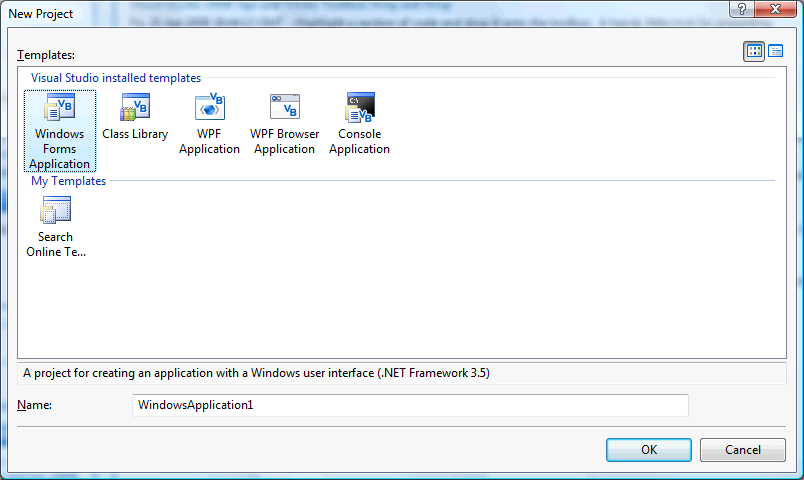
Start Microsoft Visual Basic 2008 Express Edition, then select File then New Project... Choose Windows Forms Application from the New Project Window, enter a name for the Project and then click OK, see below:
Step 2
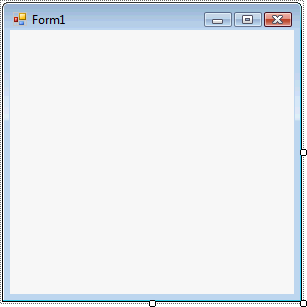
A Blank Form named Form1 should then appear, see below:
Step 3
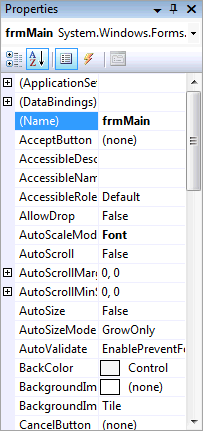
With Form1 selected goto the Properties box and change the Name from Form1 to frmMain
Step 4
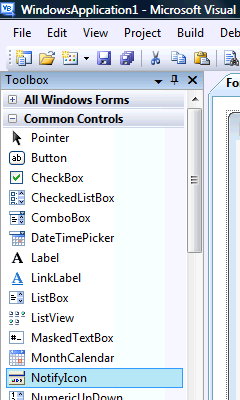
Then from the Common Controls tab on the Toolbox select the NotifyIcon component:
Step 5
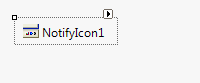
Draw a NotifyIcon on the Form, or double-click on the NotifyIcon entry in the Toolbox, and it will appear in the pane, beneath the form, see below:
Step 6
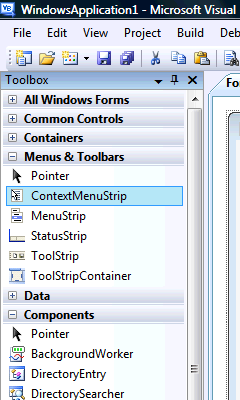
Then from the Menus & Toolbars tab on the Toolbox select the ContextMenuStrip Control, see Below:
Step 7
Draw the ContextMenuStrip onto the Form or double-click on the ContextMenuStrip Control entry in the Menu & Toolbars tab on the Toolbox, see below:

Step 8
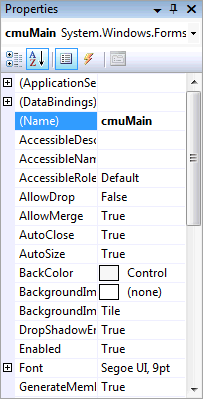
Select or click on the ContextMenuStrip if it is not already selected, then goto the Properties box and change the Name to "cmuMain", see below:
Step 9
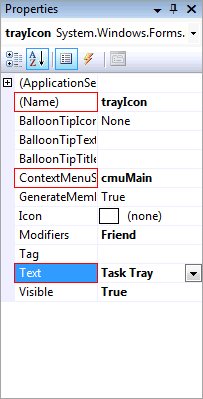
Select or click on the NotifyIcon, then goto the Properties box and change the Name to "trayIcon", the Text to "Task Tray" and then from the ContextMenuStrip select "cmuMain", all without the quotes, see below:
Step 10
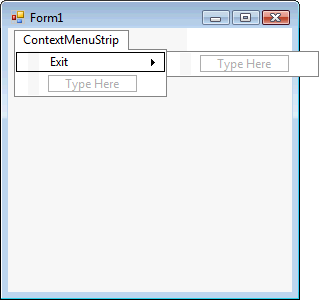
Select or click on the ContextMenuStrip again then click or select where the ContextMenuStrip says "Type Here", an editable Textbox will appear, then type in "Exit" without quotes, see below:
Step 11
Double Click on the Menu Item Labeled "Exit" (ExitToolStripMenuItem) in the ContextMenuStrip, and type the following in the ExitToolStripMenuItem_Click() Sub:
End
See Below:

Step 12
Return to the Design view by selecting the [Design] tab or Right Click on the "View Designer" option in Solution Explorer for frmMain. With the Form Displayed, Double Click on the Form (frmMain) and type the following in the frmMain_Load() Sub
trayIcon.Icon = Me.Icon
trayIcon.Visible = True
trayIcon.ShowBalloonTip(100, "Task Tray", "Hello World", ToolTipIcon.Info)
See Below:

Step 13
Save the Project as you have now finished the application, then click on Start:

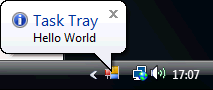
When you do the following will appear in the Task Tray:
Step 14
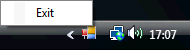
Now right click on the icon shown in the Task Tray and the ContextMenu with Exit on it should appear, see below:
Step 15
Click on Exit on the Menu or click on the Close button  on the top right of the Form to end the application.
This is a simple introduction to the Task Tray / Notification Area, you can try adding more items to the ContextMenuStrip, or hide the Form so it is a Tray application only, it is your choice!